- Any AI tool
Customise any template with one sentence
How the “Describe your project” field works, what makes a good description, and follow-up prompts to fine-tune the result in any AI tool.
Beginner 3 min read6 steps
Every template and app on Fazekit comes with demo content: a made-up company, sample products, placeholder prices. You don't have to replace that by hand. In the Build with AI panel there's a field called Describe your project — write one good sentence there and the AI adapts the whole thing to you.
This guide shows what that sentence should contain, what to avoid, and how to continue with follow-up prompts once the first version is built.
What you'll build
- A description that reliably gets you the right names, content, colours and currency on the first try.
- A small library of follow-up prompts for the most common changes.
Step 1: What the description does
When you copy a prompt, Fazekit adds your description to it with clear instructions: keep the layout, animations and accessibility, and replace the demo texts, names, prices, data and accent colours so they fit your project.
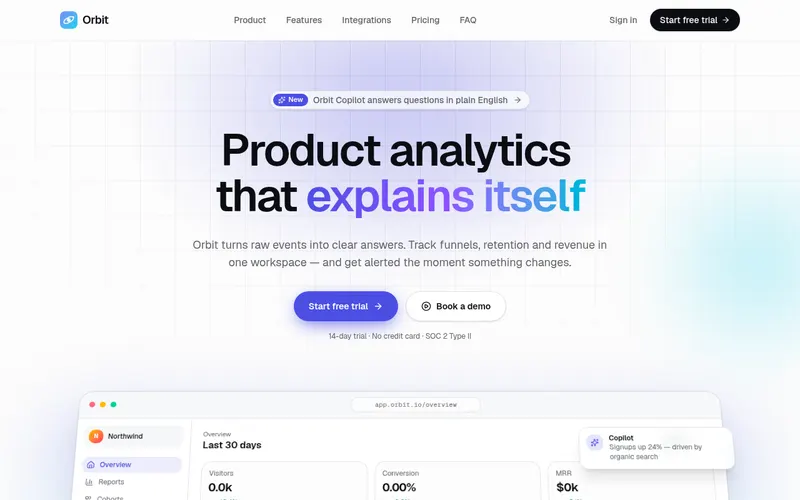
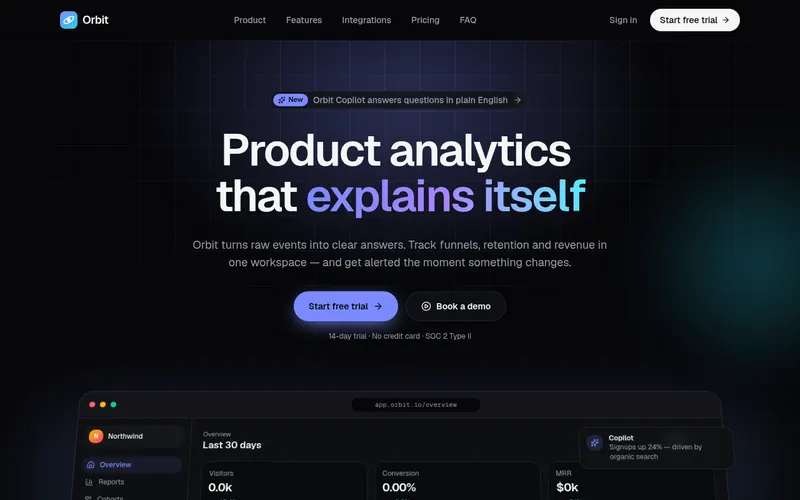
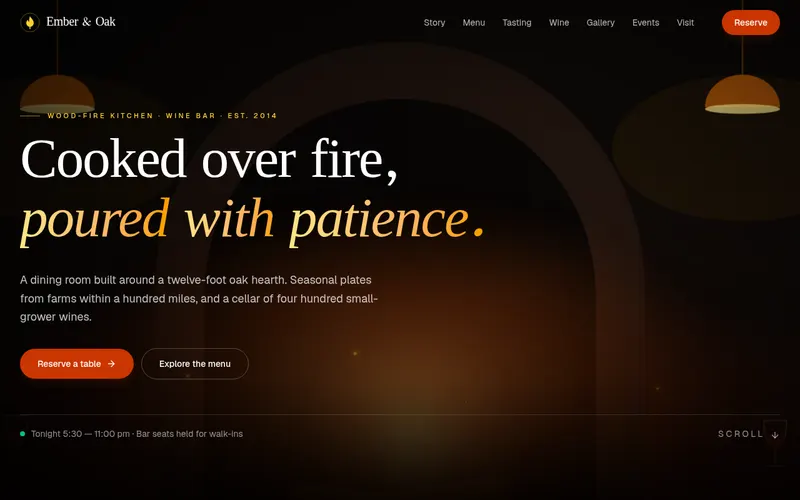
That means the description is for content and mood, not for redesigning. It won't turn a restaurant template into a dashboard — pick a different item for that — but it will turn a wine bar into a sushi place, or a SaaS page into a page for your app.
Step 2: Include these five things
- Name
- The business or product name, in quotes: “North Bean”.
- What it is
- What you do or sell, and for whom: “specialty coffee roastery for home baristas”.
- Look
- One or two colours or a mood: “earthy brown and cream”, “dark and premium”, “bright and playful”.
- Locale
- Language, currency and country if relevant: “prices in EUR”, “texts in Polish”.
- Must-haves
- One or two specifics: “no age gate”, “show a free-delivery banner”, “three pricing plans”.
Example Specialty coffee roastery “North Bean” for home baristas, earthy brown and cream, prices in EUR, no age gate, highlight monthly subscription
Step 3: Good and bad descriptions
Gets generic results
- Make it nice and modern
- My company website
- Restaurant
- Change everything to fit my brand
Gets your project
- Family bakery “Złoty Kłos” in Gdańsk, sourdough and pastries, warm golden tones, texts in Polish, prices in PLN
- Project management app “Tasko” for small agencies, violet accent, pricing: Free, Team $12, Business $29
- Yoga studio “Stillpoint”, calm sage green, class schedule instead of wine list
Step 4: Copy the prompt and send it
- On the item page, choose your AI tool in Build with AI.
- Type your description.
- Click Copy prompt and paste it into your tool. For big items in browser tools, send the parts in order.
- Let the AI finish before asking for anything else.
Changed your mind about the description? Edit it and copy the prompt again. In a new project that's often faster than correcting many details.
Step 5: Fine-tune with follow-up prompts
The first result is a starting point. Continue in the same chat, one change at a time:
Tone of voice Rewrite all texts in a [friendly, informal / confident, professional] tone. Keep headings short — at most 6 words.
Colours Make the accent colour [#2F855A]. Use it for buttons, links and highlights only; keep backgrounds neutral. Check contrast in light and dark mode.
Remove a section Remove the [testimonials] section completely, including its data and imports.
Reorder Move the [pricing] section above the [FAQ] section.
Translate Translate every visible text on the site into [Polish], including buttons, form labels and error messages. Format prices and dates for [Poland].
Real content Replace the demo [products / team members / events] with this list, keeping the same design: [paste your list]
Step 6: Keep it consistent as you go
- Be specific about scope: “only on the home page”, “in the footer too”.
- Protect what works: add “don't change anything else” to small requests.
- Check mobile after every few changes — it's the view most visitors see.
- Save versions before big changes, so you can go back if needed.
If the AI starts breaking things, see Fix errors when the AI gets stuck.
Keep going
Try it on a template
Open any template, write your one-sentence description in “Build with AI” and copy the prompt.
Browse templatesNext guide
Fix errors when the AI gets stuck
How to read an error, paste it so the AI can fix it, go back to a working version, and split big tasks and prompts so the AI stops looping.
← All guides·Last reviewed 24 September 2026