- v0
- Vercel
Launch a landing page with v0
Open the Fazekit SaaS landing template directly in v0, rewrite it for your product with a few prompts and deploy it in an afternoon.
Beginner 4 min read7 steps
v0 is Vercel's AI builder. It works in the browser like a chat, shows a live preview and can deploy straight to Vercel's hosting. It also understands the same component format Fazekit uses, which means you can open a Fazekit item in v0 with one click — no copying and pasting code.
In this guide you'll open the SaaS Landing template in v0, turn it into a landing page for your own product, and put it online.
What you'll build
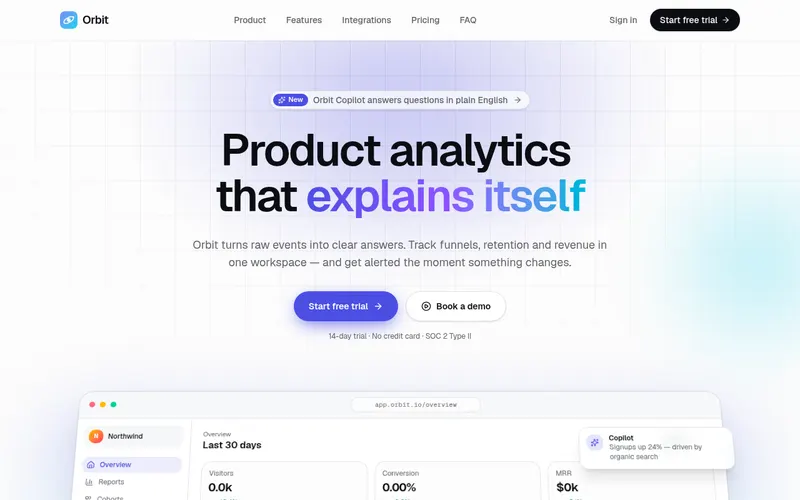
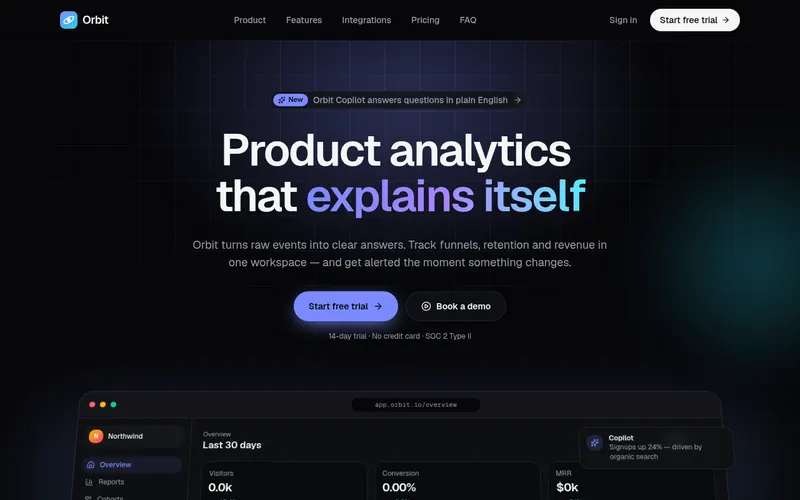
- A complete landing page: animated hero, logo strip, features, integrations, metrics, pricing with a monthly/yearly toggle, FAQ and footer.
- Your product name, headline, features and prices instead of the demo copy.
- A live URL you can share, with a sign-up or waitlist button pointing where you want.
Before you start
- A free v0 account (v0.dev — you can sign in with a Vercel account).
- Your product's name, a one-line pitch and three to six key features.
- About 30 minutes.
Step 1: Write down your product in a few lines
A landing page is mostly words. Before touching any tool, write these down in a notes app — you'll paste them into prompts later:
- Name and one-line pitch — what it does and for whom (“Invoicing for freelance designers”).
- Three to six features, each with a short title and one sentence.
- Pricing — plan names and monthly prices, or “free during beta”.
- Main action — what visitors should do: sign up, join a waitlist, book a demo.
Step 2: Open the template in v0
Go to the SaaS Landing template. In the Build with AI panel select v0. You'll see an Open in v0 button.
- Click Open in v0. A new tab opens and v0 loads the template's files directly from Fazekit.
- Sign in if v0 asks you to.
- Wait until the preview shows the landing page. It should look the same as the Fazekit preview.
Step 3: Replace the demo text with yours
Now tell v0 about your product. One clear message with all your copy works better than many small ones for this step:
Rewrite the page Adapt this landing page to my product. Keep the layout, animations and sections, only change the content. Product: [name] — [one-line pitch] Audience: [who it's for] Features: - [Feature 1]: [one sentence] - [Feature 2]: [one sentence] - [Feature 3]: [one sentence] Pricing: [Plan A: price/month], [Plan B: price/month] Main button: [Join the waitlist] Replace the demo logos with neutral placeholder logos and use my product name everywhere.
Check every section in the preview. Remove the parts you don't need rather than leaving demo content:
Prompt Remove the integrations section and the customer logo strip for now. Keep everything else.
Step 4: Change colours and fonts
The template uses one accent colour throughout, so changing it is a single request:
Brand colour Change the accent colour of the whole page to [emerald green / #0EA5E9]. Make sure buttons and links still have good contrast in both light and dark mode.
Font Use the Google font [Inter / Manrope / DM Sans] for headings and body text.
Step 5: Make the main button do something
A landing page needs a working call to action. The simplest options, from easiest to most work:
- Link to a form you already have — for example a Google Form, Tally or Typeform.
- Link to your app's sign-up page if the product already exists.
- A real waitlist form that stores emails — this needs a database or an email service (see Connect to Supabase).
Prompt Make every “[Join the waitlist]” button open this link in a new tab: [https://your-form-link]. Update the pricing buttons to use the same link.
Step 6: Add a title, description and share image
Search engines and social networks read a few hidden details from your page. Ask v0 to set them:
Prompt Set the page title to “[Product] — [short pitch]” and the meta description to “[one sentence, under 160 characters]”. Add Open Graph and Twitter card tags so links look good when shared, and use a simple generated share image with the product name.
Step 7: Deploy it
v0 can publish the page to Vercel. At the time of writing there's a publish/deploy action in the v0 interface; the first time, it may ask you to connect or create a Vercel account. You get a free
.vercel.appaddress you can share right away.To use your own domain like
yourproduct.com, follow Publish your site and connect your own domain.
Keep going
Open the template in v0
Go to the SaaS Landing template, choose v0 in “Build with AI” and click “Open in v0”.
Open SaaS Landing — Build with AINext guide
Build a restaurant website with Bolt
Use Bolt and the Fazekit Restaurant template to launch a site with your menu, opening hours, reservations and location.
← All guides·Last reviewed 24 September 2026