- Lovable
Build an online store with Lovable and Fazekit
Turn the Fazekit Online Store app into your own shop in Lovable — product catalog, cart and checkout — without writing code.
Beginner 6 min read8 steps
Lovable is an AI app builder that runs in your browser: you describe what you want in a chat and it writes the code, shows a live preview and can publish the result. On its own it starts from a blank page. With a Fazekit app you start from a finished, polished storefront instead — and spend your time on your products, not on layout.
In this guide you'll add the Online Store app to a Lovable project, adapt it to your own shop with one sentence, change products and details with follow-up prompts, and get it ready to publish.
What you'll build
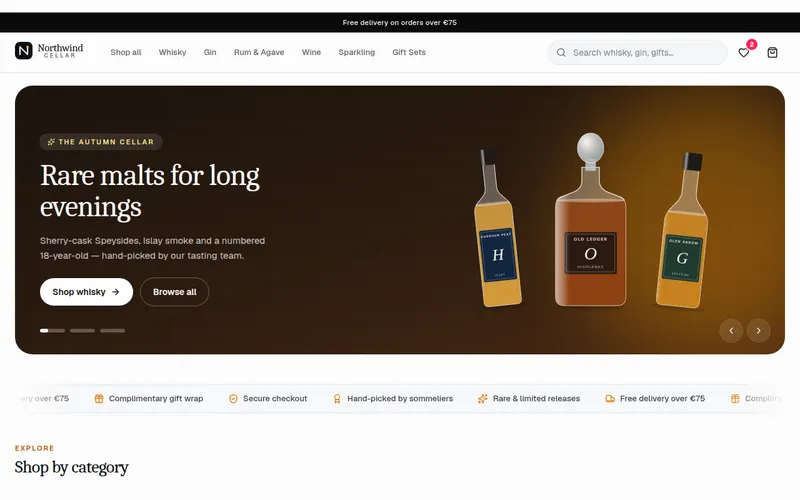
- A storefront with a home page, product catalog with filters, product pages, a cart drawer and a 3-step checkout.
- Your shop name, products, prices, currency and colours instead of the demo content.
- A project you can keep improving in plain words — and later connect to a real database and payments.
Before you start
- A free Lovable account (sign up at lovable.dev).
- A short description of your shop: name, what you sell, colours you like, currency.
- About 30–45 minutes.
Step 1: Look at the store app first
Open the Online Store app on Fazekit and click through the live preview: the home page, a category, a product, add something to the cart and try the checkout. Everything you see there is what Lovable will receive.
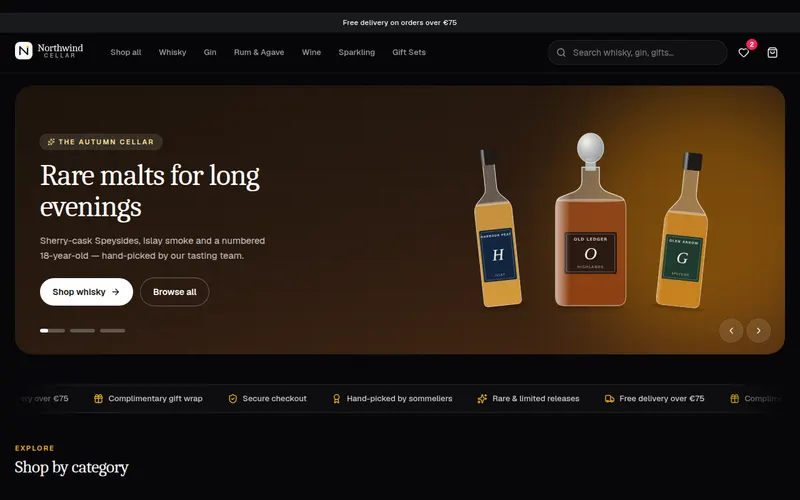
Out of the box it's a premium drinks shop, with an 18+ age gate and bottle illustrations. That's just demo content — you'll replace it in the next steps. If you don't sell alcohol, you'll simply ask Lovable to remove the age gate.
Step 2: Create a new Lovable project
Sign in to Lovable and start a new, empty project. Lovable projects use React, TypeScript and Tailwind CSS — the same stack as Fazekit — so the code fits without changes.
If Lovable asks what you want to build, you can write something short like “An online store” and let it create the starting project. You'll paste the Fazekit prompt right after.
Step 3: Describe your shop in one sentence
Back on the Online Store page, find the Build with AI panel. Select Lovable as your tool, then fill in the Describe your project field. This one sentence is what turns the demo into your shop: the AI replaces names, products, prices and accent colours to match it.
Too vague
- A shop
- Make it look nice
- Store for my business
Specific
- Specialty coffee roastery “North Bean”, whole beans and brewing gear, earthy brown and cream, prices in EUR, no age gate
- Handmade ceramics studio “Kiln & Co.”, mugs, bowls and vases, soft terracotta palette, prices in GBP
Want more detail on writing descriptions? See Customise any template with one sentence.
Step 4: Copy the prompt and paste it into Lovable
Click Copy prompt for Lovable. The prompt contains the complete source code of the store plus instructions for Lovable, so it doesn't have to guess anything.
The store is a big app, so for browser tools Fazekit splits the prompt into parts. After copying part 1, the panel shows buttons for the remaining parts.
- Paste part 1 into the Lovable chat and send it. Lovable should only reply that it received the part.
- Go back to Fazekit, copy part 2, paste and send it. Repeat for every part.
- After the last part Lovable starts building. This can take a few minutes — let it finish.
Step 5: Check the result in the preview
When Lovable is done, click through the preview the same way you did on Fazekit: home, catalog, product page, cart, checkout. Also check a phone-sized view — most shoppers will visit on mobile.
If something is broken or you see an error, don't start over. Copy the error message into the chat and ask Lovable to fix it:
Prompt The preview shows this error: [paste the error here]. Please fix it without changing the design or removing any features.
More help: Fix errors when the AI gets stuck.
Step 6: Make it yours with follow-up prompts
Now refine the shop in small steps — one change per message works best. Copy any of these and edit the parts in brackets:
Replace the products Replace all demo products with these, keeping the same product card and product page design: 1. [Product name] — [short description] — [price] 2. [Product name] — [short description] — [price] 3. [Product name] — [short description] — [price] Put them in the categories [category A] and [category B].
Use real photos Replace the drawn bottle illustrations with product photos. Use an image field on each product and show a neutral placeholder until I upload my own photos. Keep the image area the same size so the layout doesn't jump.
Shipping and promo codes Change the shipping options to: [standard, 3–5 days, price] and [express, 1–2 days, price]. Free shipping above [amount]. Replace the demo promo codes with one code: [CODE] for [10]% off.
Add your pages Add an About page and a Contact page in the same style as the rest of the store, and link them in the header and footer. About text: [2–3 sentences about your shop]. Contact: [email], [city].
Step 7: Publish your store
Lovable can put your project online with its publish button, giving you a free web address to share. You can connect your own domain later — see Publish your site and connect your own domain.
Step 8: Next step: real products, orders and payments
To run a real shop you need two more things: a database that stores products and orders, and a payment provider that charges cards safely. A common combination is Supabase (database and user accounts) and Stripe (payments).
When you're ready to sell for real, switch to the full-stack Online Store kit: the same shop with Supabase tables, customer accounts, an admin panel and Stripe checkout already set up. Connect a Fazekit app to a real database with Supabase explains the concepts in plain words.
Keep going
Start your store now
Open the Online Store app, pick Lovable in “Build with AI”, describe your shop and copy the prompt.
Open Online Store — Build with AINext guide
Launch a landing page with v0
Open the Fazekit SaaS landing template directly in v0, rewrite it for your product with a few prompts and deploy it in an afternoon.
← All guides·Last reviewed 24 September 2026